

Self-Coaching Using Your Gps Watch
In the vast universe of all things related to running, there is an empty space next to the signpost that says, “Here be the analysis tools for self-coached runners.” It’s not fair. For the recreational runners whose goal is to finish a marathon, there are social websites like Strava and Garmin Connect. Recreational runners get to see colorful graphs of their runs and even post them on Facebook to show their friends. On the other end of the spectrum, the elite runners who are training to win a race hire their own personal coaches—who undoubtedly have custom spreadsheets set up to crunch every nuance of their running data.
And then there are the rest of us. We’re the self-coached community. We’re training to PR, BQ, or some other noble two-letter goal. We’re the ones who read books, blogs, and websites searching for that elusive perfect training plan. We know what periodization means, how to figure out our lactate-threshold pace, and that the important Jack Daniels isn’t a whiskey. For us, there is no lack of excellent training plans from which to choose.
But the plan is just the start. Picking a good plan isn’t the end of the story—it’s the beginning. After all, it doesn’t make any sense to spend a lot of effort personalizing a training program just to follow it blindly for the next 16 weeks—never tweaking the plan or your training in response to what is actually happening. Tempo run? Check. Hill workout? Check. Intervals? Check. Getting faster? Um . . . where’s the check box for that? The point is that an effective training plan is more than just a checklist of training exercises.
What’s missing for us, the self-coached running community, is feedback: the ability to do a simple, yet deep-dive analysis on our running data—information that we can use to fine-tune how we execute our training plan. The good news is that has changed. There is now an easy analysis tool available to everyone.
Most self-coached runners use a GPS watch or a smartphone app to capture their running data. GraphMyRun.com is a free website designed to analyze that data and provide meaningful feedback so we can coach ourselves better.
The idea for GraphMyRun.com was born when I became frustrated by the limited graphing capabilities on the big-name websites. As a scientist, I have strong opinions about how data should be plotted. The inability to change the range of the Pace axis was preventing me from seeing how fast my threshold pace was. Some of my friends in my local running group had similar frustrations—so I collected their wish lists and created GraphMyRun.com.
GraphMyRun.com doesn’t limit you to any particular training plan. Picking your training plan is a personal choice, and a decent analysis tool shouldn’t limit your selection in any way. But no matter which training program you choose, there are a couple of key things that we, as self-coached runners, should know about our training runs. For example, are we hitting our pace (or heart-rate) goals? Are we spending the right amount of time at our targeted pace (or heart-rate) zones? Are we running at a constant effort or a constant pace? Are we maintaining good form running up and down hills? And most important—are we getting faster?
What you do with this information is up to you. You’re the coach, after all. If you didn’t hit your pace target on your last training run, you might decide to 1. just increase your effort and try to run faster next time;
2. get more rest the day before your next hard run; 3. work on increasing your turnover; or 4. finally admit that you need to take some time off to recover from that injury. And so on. It’s a long list, and what you decide depends on your personal situation. There’s no magic answer that is going to be right for everyone every time. But what is certain is that without knowing how you did on your last training run, you won’t have the information to make the right choices for your next training run.
Determining your pace Figuring out your average pace would be easy—if your entire run was spent at the same speed. But the fact is that we almost never run the same pace from start to finish during our training runs. There are warm-ups and cool-downs, intervals, strides, hill workouts, fartleks, tempo runs, and fast finishes. Our overall speed may vary, but it’s important to know how fast we ran particular portions of our run. With GraphMyRun.com, it’s easy to figure out your average pace (or heart rate or cadence) for any specific sub-portion of your run.
Before you start, you need to have your running files somewhere on your computer. GraphMyRun.com runs on your web browser. There is no login and nothing to upload. To analyze your running files, they need to be available on your hard drive. GraphMyRun.com can use either .gpx or .tcx files, two of the most common GPS file formats.
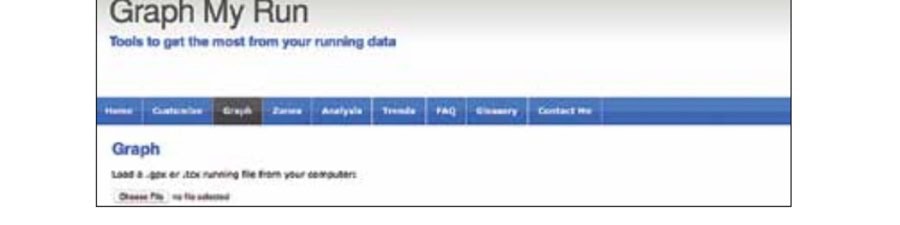
Open your web browser and navigate to www.GraphMyRun.com. Click on the Graph tab and then use the Choose File button to open your running file.
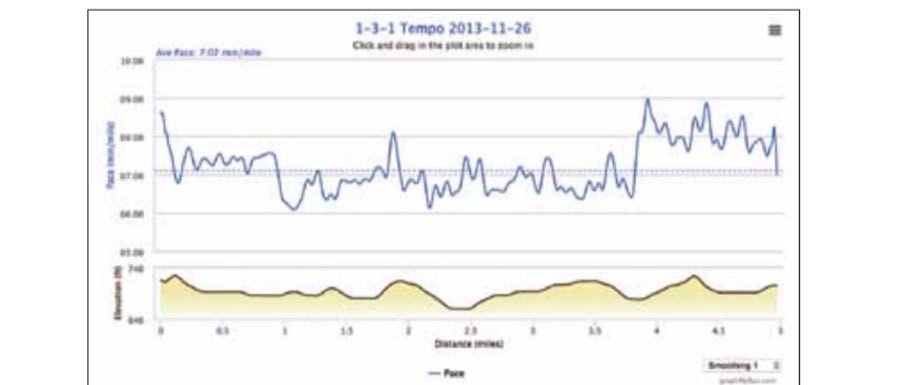
Here’s an example of a tempo run. The overall average pace is 7:07 minutes per mile (shown in the upper left corner and displayed as the dotted line on the graph). That’s mildly interesting, but what we really want to know is how fast we ran the threshold portion of this run.
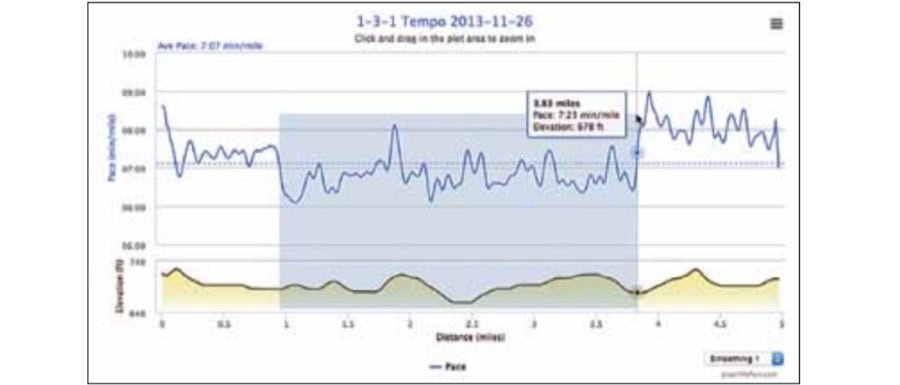
To determine the threshold pace, simply click and drag to select the portion of interest of the graph as shown below:
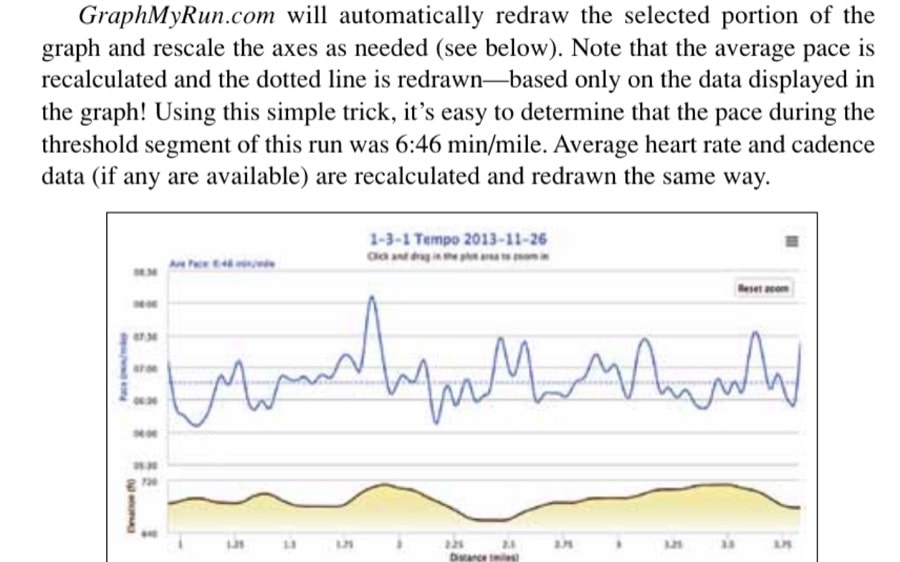
GraphMyRun.com will automatically redraw the selected portion of the graph and rescale the axes as needed (see below). Note that the average pace is recalculated and the dotted line is redrawn—based only on the data displayed in the graph! Using this simple trick, it’s easy to determine that the pace during the threshold segment of this run was 6:46 min/mile. Average heart rate and cadence data (if any are available) are recalculated and redrawn the same way.
Time in zone Determining how much of a training run was spent in your pace or heart-rate zones is just as easy. But first you need to customize GraphMyRun.com with your own personal data. Click on the Customize tab, and enter your information (see graphic on the next page). (Your weight is used to calculate your net calories accurately. Strictly speaking, it’s not needed for pace or heart- rate zone analysis.) Clicking on the “Customize Your . . .” button at the bottom left of each section fills in the colored blocks—but more important, it saves your input.
The information you just entered is saved in your web browser. If you open another browser on your computer, use a different computer, or clear the history and data from your current web browser, then your personal data will not be there. (Just reenter it.) This is actually a security feature of your web browser. Allowing Internet web pages to write files on your computer would open a Pandora’s box of trouble.
There are two ways to customize your training-pace zones. You can fill them in manually if you already know them (be sure to click the Validate Your Input button to save your data). Or you can let GraphMyRun.com figure them out for you by entering the time and distance of a recent race.
GraphMyRun.com uses four basic training paces: Easy, Long, Threshold, and Interval. There is no universal agreement on how many pace zones a training plan
should have. Some training programs have many training paces, each used for a very specific training goal. And sometimes those training paces overlap each other by quite a bit, which can be a bit confusing. But most training plans seem to have these four distinct pace zones—although they may not use the exact same names.
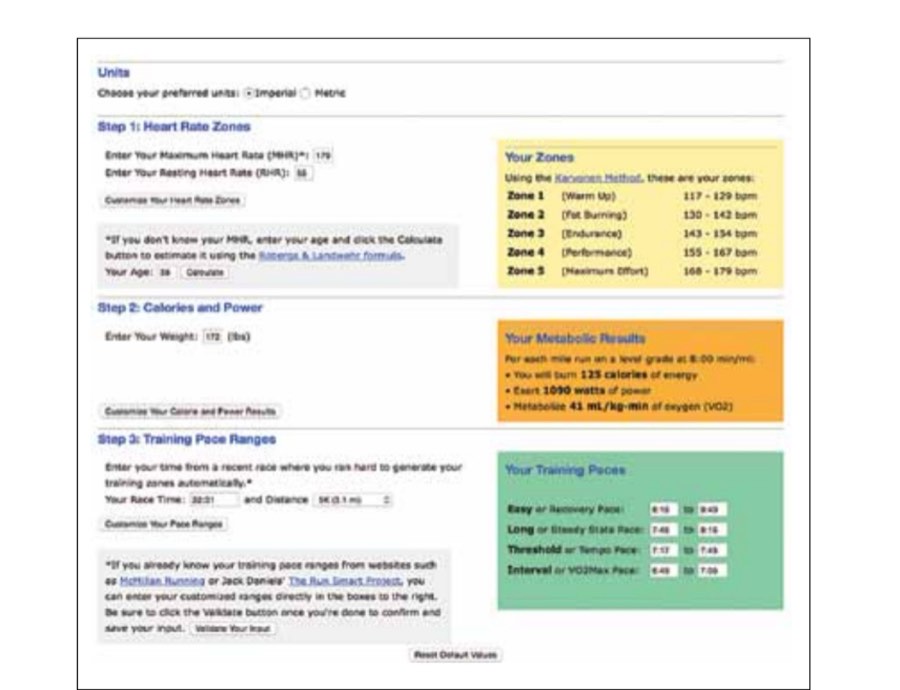
After you have customized GraphMyRun.com for your pace and HR zones, click on the Zones tab. As before, use the Choose File button to select your running file. A summary of your zone information is displayed. Holding the mouse pointer over one of the segments of the Zone chart will reveal what percentage of time was spent in that zone.
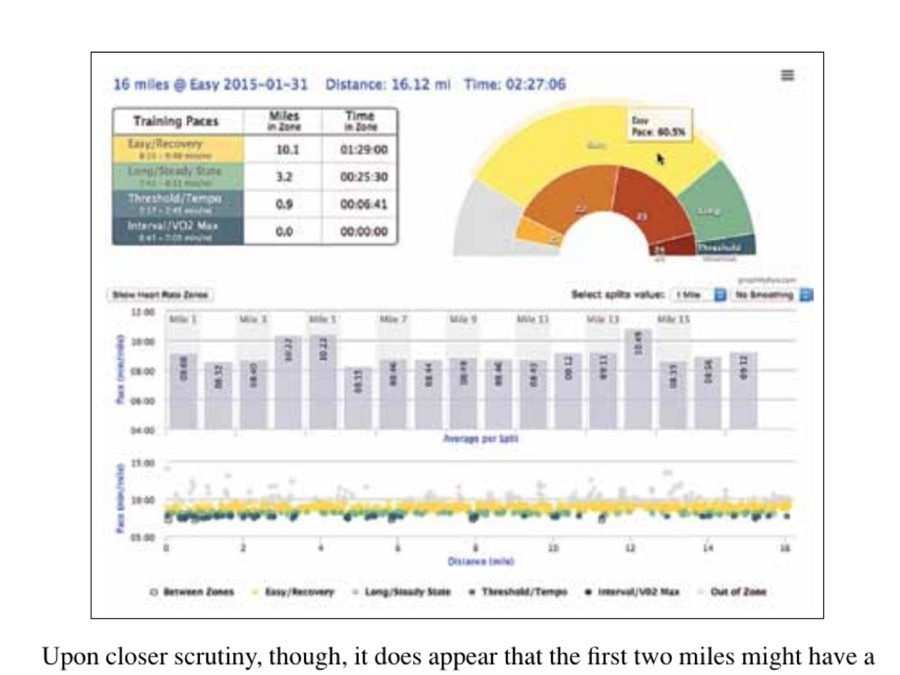
On a 16-mile LSD (long, slow distance) run (see next page), we see that 10.1 miles (that is, 1 hour, 29 minutes) were spent in the Easy pace zone. That’s only about 61 percent of the total training session spent in the proper zone. That’s important feedback in and of itself, but we can learn even more. Let’s use the GraphMyRun.com’s deep-dive capabilities to figure out where this runner went wrong. A common mistake on LSD runs is to go out too fast. Is that what happened here?
The color-coded Pace versus Distance dot chart shows how the pace zones were distributed over the run. The chart on the next page seems to show a fairly uniform distribution of the Easy pace (yellow dots) throughout the entire run.
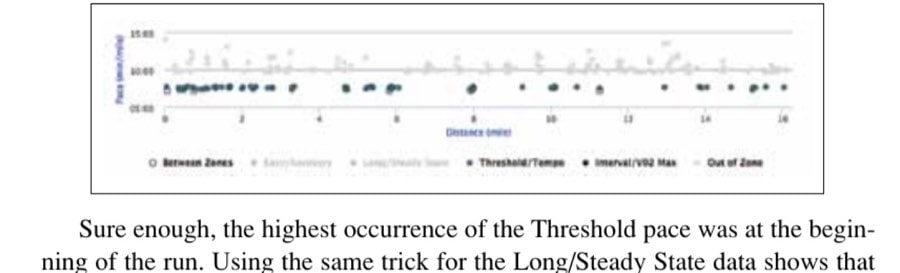
Upon closer scrutiny, though, it does appear that the first two miles might have a higher concentration of Threshold pace (blue-green dots) than the rest. A trick that you can use to see this more clearly is to toggle off the Easy /Recovery and Long/Steady State data by clicking on them in the legend. That makes the Threshold/Tempo data stand out as seen below:
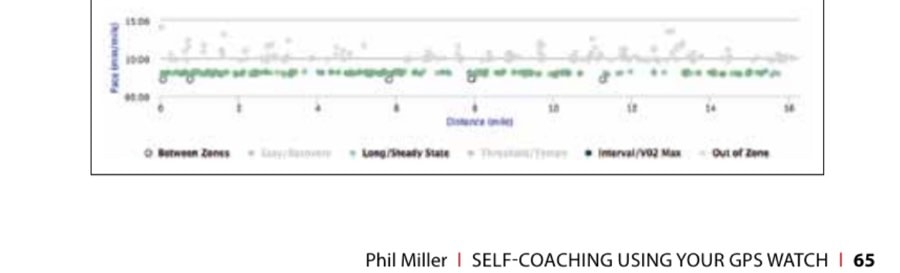
Sure enough, the highest occurrence of the Threshold pace was at the beginning of the run. Using the same trick for the Long/Steady State data shows that this pace is more uniformly distributed—with just a slight reduction in occurrence between miles 11 and 13.
This simple analysis shows the runner missed his goal of staying in the Easy zone for his entire run by going just a bit too fast—for the entire run. It was slightly worse in the first couple of miles, but he was still creeping into the Long zone and sometimes the Threshold zone right up until the end of the run. The low percentage spent in the proper zone cannot be blamed on simply “starting too fast.”
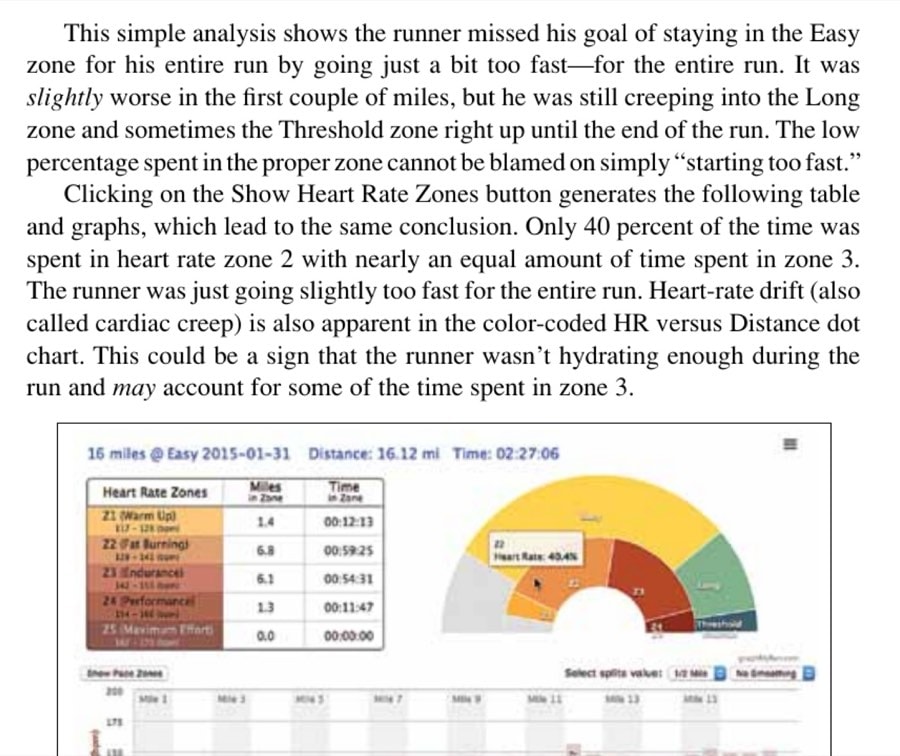
Clicking on the Show Heart Rate Zones button generates the following table and graphs, which lead to the same conclusion. Only 40 percent of the time was spent in heart rate zone 2 with nearly an equal amount of time spent in zone 3. The runner was just going slightly too fast for the entire run. Heart-rate drift (also called cardiac creep) is also apparent in the color-coded HR versus Distance dot chart. This could be a sign that the runner wasn’t hydrating enough during the run and may account for some of the time spent in zone 3.
All these graphs were generated in the Zones tab with just a few clicks of the mouse. Simple? Yes. Powerful? Very.
Constant effort versus constant pace When we try to figure out if we ran a constant effort versus a constant pace, what we really mean is, “How did we do on the hills?” (Because if the course was perfectly flat, all we would have to do is look at our splits to see if our pace or heart rate varied.) So what we really want is a way to see how our heart rate (or pace) varied on the hills.
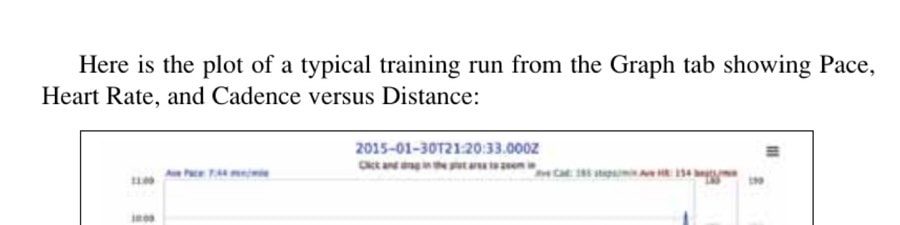
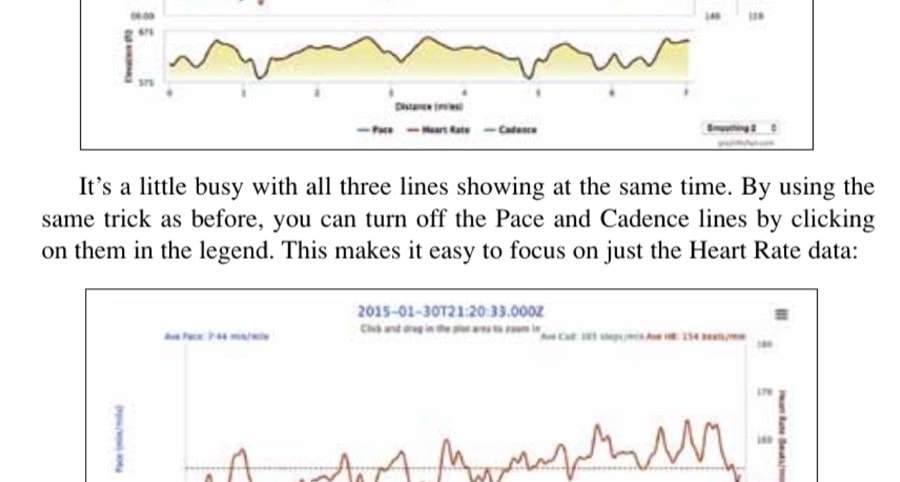
Here is the plot of a typical training run from the Graph tab showing Pace, Heart Rate, and Cadence versus Distance:
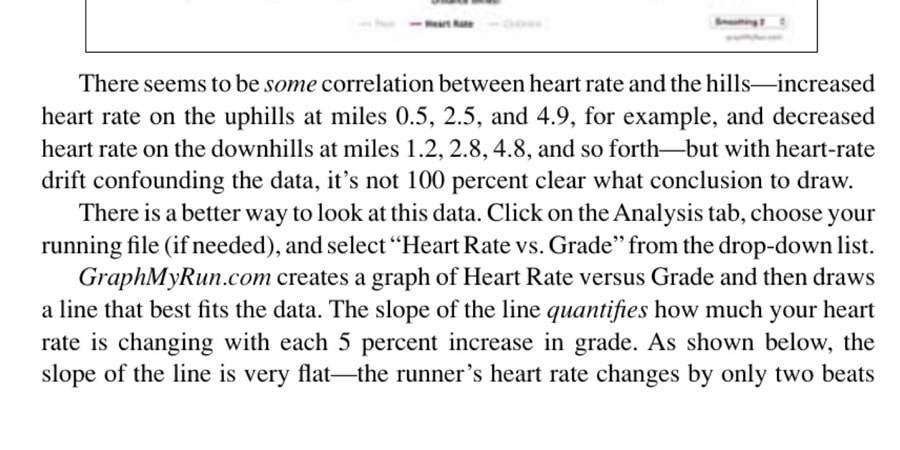
It’s a little busy with all three lines showing at the same time. By using the same trick as before, you can turn off the Pace and Cadence lines by clicking on them in the legend. This makes it easy to focus on just the Heart Rate data:
There seems to be some correlation between heart rate and the hills—increased heart rate on the uphills at miles 0.5, 2.5, and 4.9, for example, and decreased heart rate on the downhills at miles 1.2, 2.8, 4.8, and so forth—but with heart-rate drift confounding the data, it’s not 100 percent clear what conclusion to draw.
There is a better way to look at this data. Click on the Analysis tab, choose your running file (if needed), and select “Heart Rate vs. Grade” from the drop-down list. GraphMyRun.com creates a graph of Heart Rate versus Grade and then draws a line that best fits the data. The slope of the line quantifies how much your heart rate is changing with each 5 percent increase in grade. As shown below, the slope of the line is very flat—the runner’s heart rate changes by only two beats
per minute for each increase of grade of 5 percent. (For comparison, Heartbreak Hill in the Boston Marathon has an average grade of about 4.5 percent.) Notice that the confounding effect of heart-rate drift that we saw on the previous graph is completely eliminated using this powerful analysis technique.
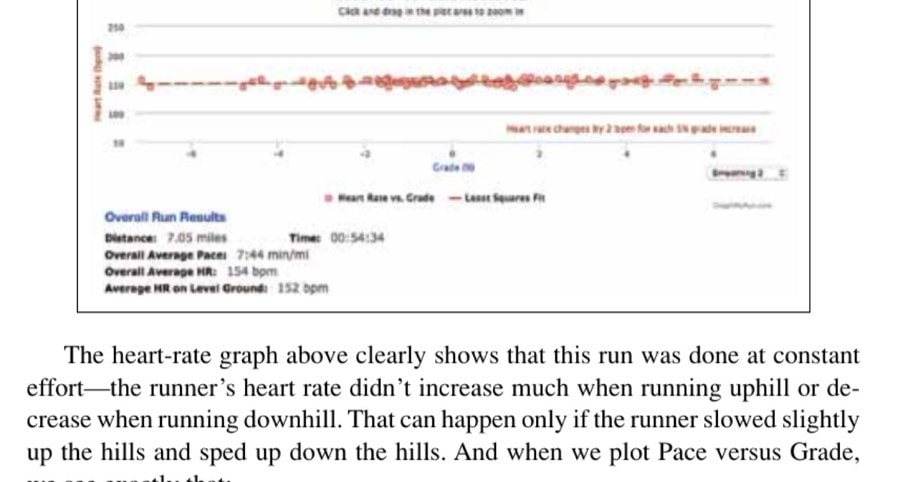
The heart-rate graph above clearly shows that this run was done at constant effort—the runner’s heart rate didn’t increase much when running uphill or decrease when running downhill. That can happen only if the runner slowed slightly up the hills and sped up down the hills. And when we plot Pace versus Grade, we see exactly that:
The pace slowed by nearly half a minute per mile for every 5 percent increase in grade. (And conversely, it decreased by the same amount when running downhill for every 5 percent decrease in grade.) The heart-rate graph is the best way to check for constant effort, but if you don’t have a heart rate monitor using the Pace versus Grade plot can also provide some insight.
Form factors Everyone knows there is a strong link between proper running form and running injury free. Our GPS watch data alone can’t tell us if our running form is good, but it’s possible to analyze our running files to provide some clues. For example, a lot has been written about the evils of overstriding and heel striking. Extending your leg far in front of your center of gravity puts extra stress on your leg muscles, tendons, and joints and it causes you to brake slightly as your heel touches down.
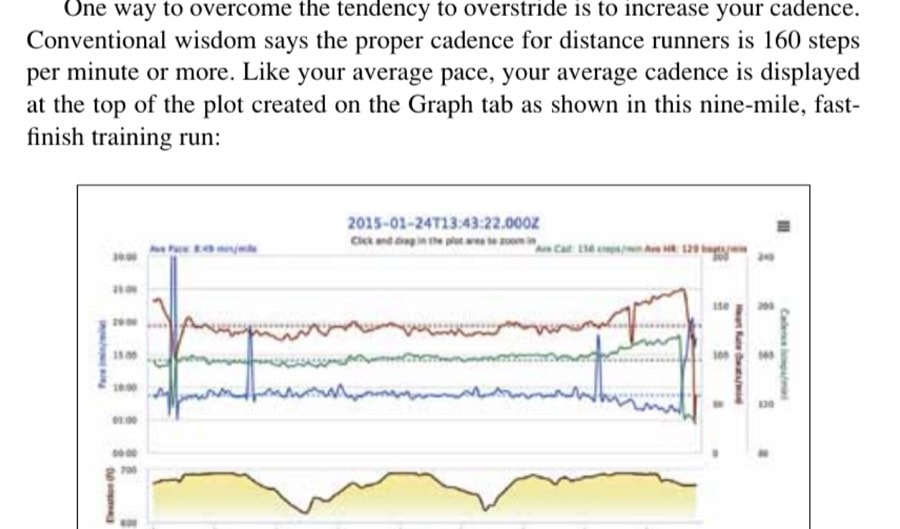
One way to overcome the tendency to overstride is to increase your cadence. Conventional wisdom says the proper cadence for distance runners is 160 steps per minute or more. Like your average pace, your average cadence is displayed at the top of the plot created on the Graph tab as shown in this nine-mile, fastfinish training run:
Clicking and dragging allows you to zoom in (as always) and find your average cadence for any portion of your run. This is useful feedback if you purposely tried to increase your cadence between your warm-up and cool-down. Altering your natural running form can feel very awkward. If you need an ego boost, go to the Analysis tab and select “Pace vs. Cadence” from the dropdown button list. You might see that your efforts to avoid heel striking have a side benefit: even small changes in cadence can result in a significantly faster pace.
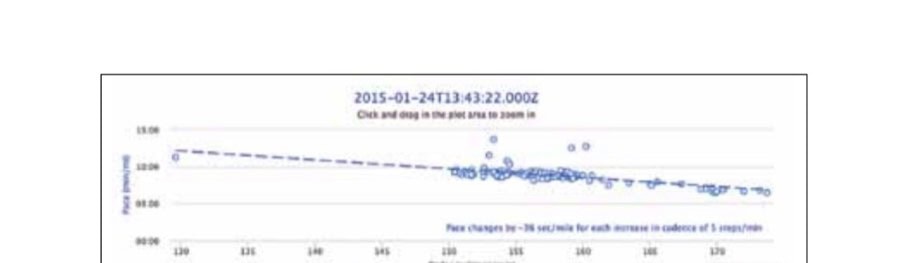
In the graph above, the runner’s pace increases by over 30 sec/mile with just an increase in cadence of five steps/minute. Not all coaches agree, but many believe that it’s better to keep a constant cadence when running uphill. One argument for constant cadence is that physiologically the contraction of your leg muscles helps pump blood from your veins back to your heart. Therefore, to get the most oxygen to your muscles, it helps to keep your cadence high. That means to maintain a constant effort, you’ll need to alter your stride length to adjust your pace: shorter strides uphill and longer strides downhill. (Interestingly, other coaches preach just the opposite: they believe a slower cadence running up hills is better.)
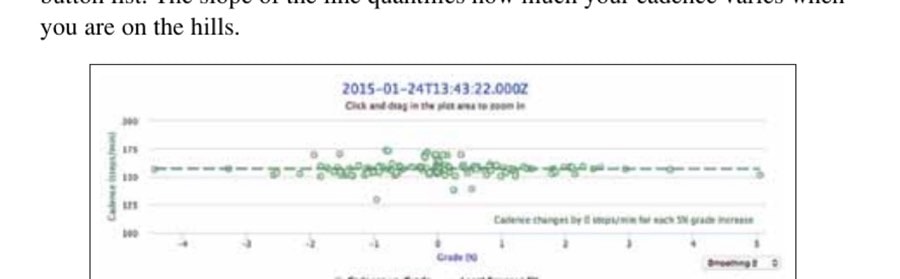
Regardless of which camp you fall in, you’ll want to know how much your cadence is actually changing on the hills to see if you’re running the way you want. Go to the Analysis tab and select “Cadence vs. Grade” from the drop-down button list. The slope of the line quantifies how much your cadence varies when you are on the hills.
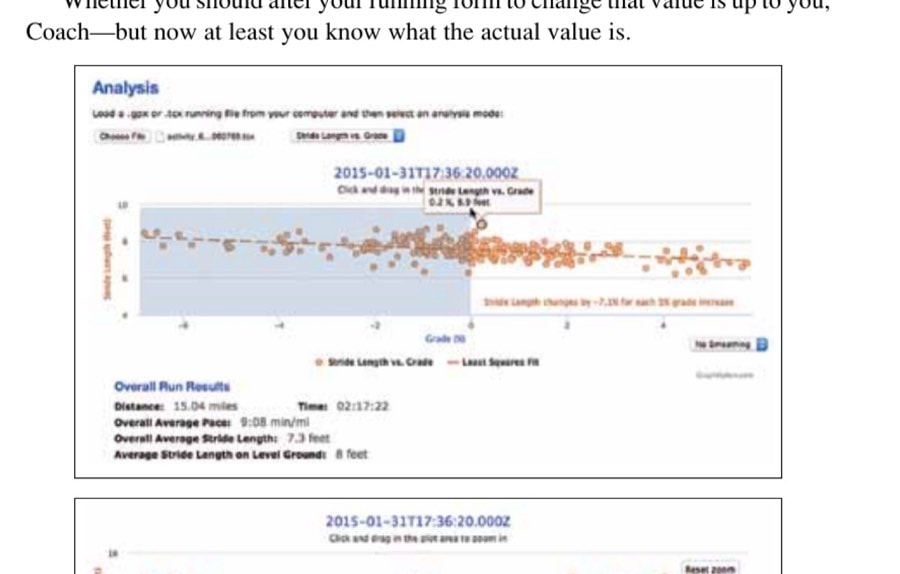
From this graph, it’s clear that this runner was keeping a constant cadence on the hills. Are you overstriding when running downhill? A study of eight injury-free male distance runners in the January 2010 issue of Medicine & Science in Sports & Exercise showed an average increase in stride length of about 10 percent when running down a 5 percent grade. While no one is suggesting that this is the optimum value, you can use GraphMyRun.com to see how you compare to the results of this study. Choose a file and select “Stride Length vs. Grade” from the
drop-down button list. Then click and drag to select all the negative grade data as shown below: GraphMyRun.com redraws the Stride Length versus Grade graph using only the downhill data points. The percentage shown in the lower right corner is how much your stride changes when you run downhill. Whether you should alter your running form to change that value is up to you, Coach—but now at least you know what the actual value is.
Faster and faster Sixteen weeks is a long time to invest in a training plan. Your first hint that your plan needed tweaking shouldn’t be the moment you read your finish time off the race clock at the end of your big race—it’s too late by then. We need a way to judge our progress during our training. Although “Am I getting faster?” seems like a simple question, it’s actually hard to figure out because it all boils down to: what does “faster” mean? You can’t accurately judge “faster” just by comparing the total times or average paces of two of your runs. For example, some people race 5Ks periodically during their training to judge their progress and tweak their pace zones. Imagine
that at the beginning of your training cycle you raced a 5K in 21 minutes, 45 seconds. Eight weeks into your training you finish another one in 21:43. Do you consider that faster? Everyone agrees that mathematically it’s two seconds faster, but is it meaningfully faster? Put it this way, would you be happy if after two months of serious training you managed to shave only two seconds off your 5K race time? Probably not.
Let’s turn the question around. Your average pace for the first race works out to 7:01 min/mile. Wouldn’t you be unhappy if your average pace for the second race was 7:20 min/mile? Not necessarily. If you broke a shoelace on the second race and it took you three minutes to knot it back together, then your pace while running was actually 6:42 min/mile. You would probably be pretty happy in that case despite finishing two minutes slower than the first race.
The point is that it isn’t enough to blindly compare race times or pace averages to figure out if you’re getting faster. Fortunately, GraphMyRun.com has an easy way to answer this complex question. Using the Trends tab, it’s possible to open several data files at the same time. GraphMyRun.com puts them in chronological order and then plots them in a special format called a “box plot” that makes it easy to see if you’re getting faster.
Box plots are the way that statisticians compare data. They are very simple to use. (They aren’t even that hard to create, but GraphMyRun.com does all that for you in the background anyway.) In short, data is organized in a particular way, and a box is drawn around a portion of it using certain rules. To compare two data sets, you compare their boxes. If two boxes overlap a lot, then the data sets aren’t statistically different.
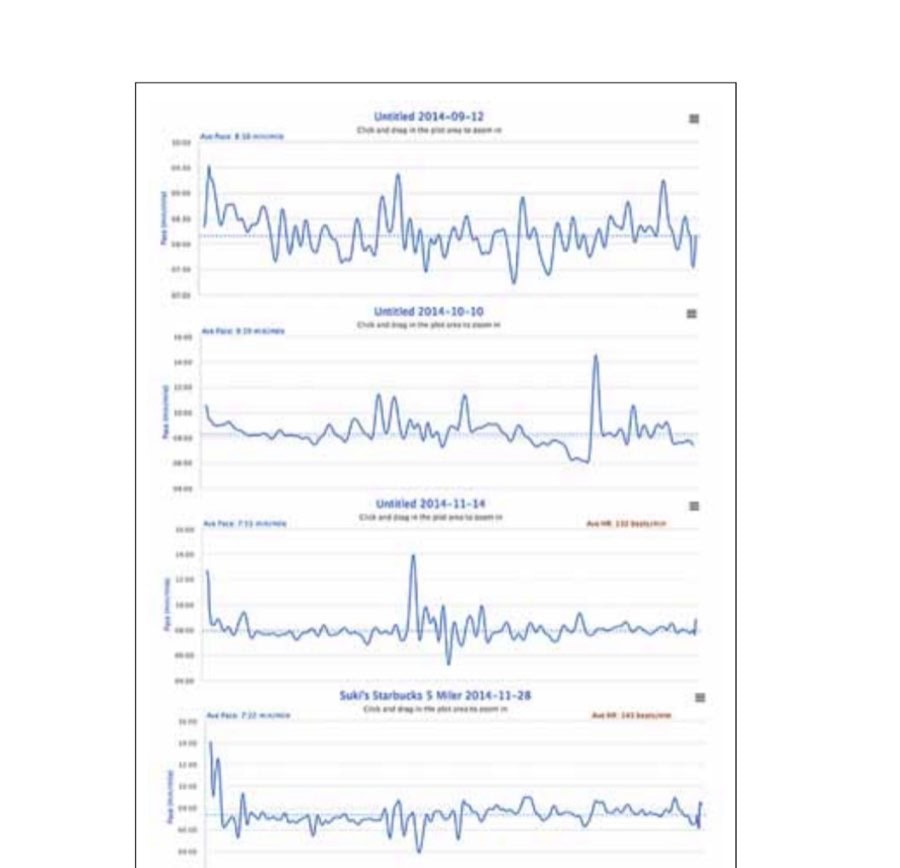
To show how this works, let’s compare the four training runs shown on the next page. (To make it simple to compare, the HR plots on the last two runs were toggled off.) These are all from the same five-mile-long course and were run over a twomonth time span. While these graphs are interesting to compare, they don’t tell us “are we getting faster?”
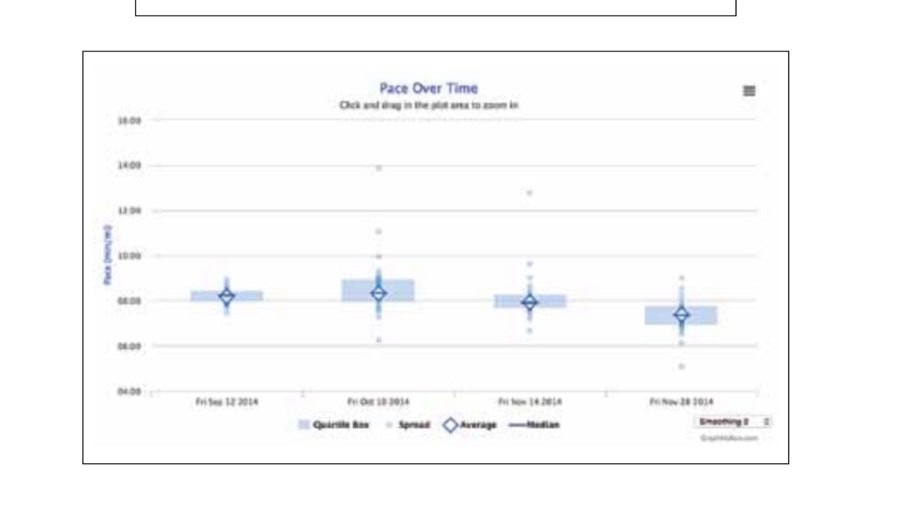
Navigate to the Trends tab and click on the Choose Files button. Now we can select the four running files that we wish to compare. The default graph is the Pace Over Time box plot as shown on the next page.
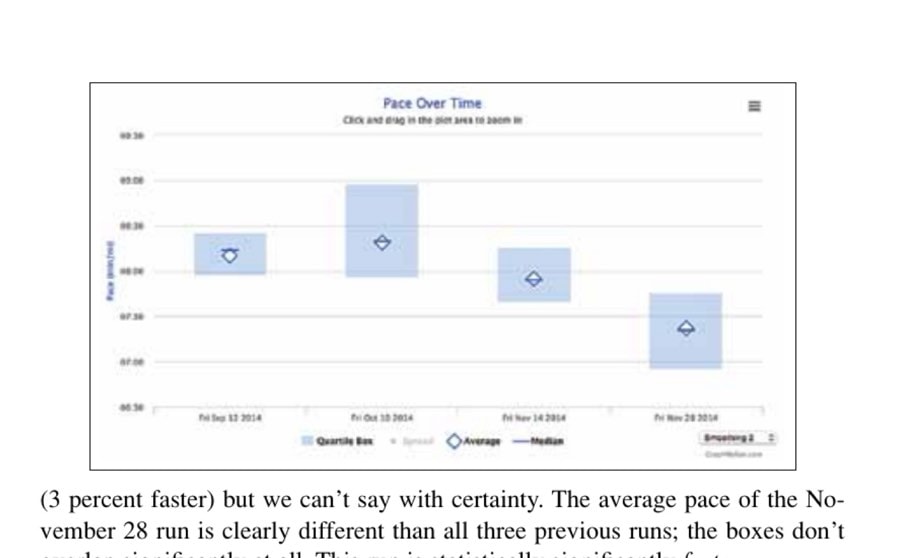
The runs are plotted oldest to newest from left to right. As always, we can toggle off parts of the graph by clicking in the graph legend. By toggling off the Scatter data, we get the following box plot, which is much easier to evaluate.
The boxes from the September and October runs overlap completely. They are not meaningfully different even though average pace of the October run was 2 percent slower than September’s. The November 14 box is on the borderline. About half the box overlaps with the September and October runs. It’s quite possible that the average pace of this run is different from the September run
(3 percent faster) but we can’t say with certainty. The average pace of the November 28 run is clearly different than all three previous runs; the boxes don’t overlap significantly at all. This run is statistically significantly faster. Self-coached runners need a training plan and feedback to monitor their progress. Most of us already own a GPS watch. With GraphMyRun.com, we now have the ability to easily evaluate our running results so that we can train better.
This article originally appeared in Marathon & Beyond, Vol. 19, No. 6 (2015).
← Browse the full M&B ArchiveMore like this
1,000+ stories from 19 years of Marathon & Beyond
The complete archive of the legendary long-distance journal — digitized and free to read.
